





When sales and finance work from different customer records, everyday work slows down. A sales rep may see one customer address in CRM while finance sees another in Sage ERP. Orders, invoices, and follow-ups then need manual checking.
Sage CRM integration connects Sage CRM, or another CRM, with a Sage ERP so customer, order, invoice, and inventory data can move between teams with fewer gaps. The goal is straightforward: let the CRM manage customer conversations and let the ERP manage business records, with the right data shared between them.
The hard part is rarely moving data once. It is deciding what should move, in which direction, and which team owns each field. Get that right and the integration becomes something sales and finance can trust. Get it wrong and you trade manual entry for duplicate cleanup.
Key Takeaways
|
What Sage CRM Integration Connects
The first thing to understand is the difference between CRM and ERP.
A CRM is where customer-facing teams work. Sales teams use it for leads, contacts, opportunities, notes, tasks, and follow-ups. Service teams use it for cases and customer history.
An ERP is where the business keeps its operational and financial records: customers, orders, invoices, payments, inventory, pricing, stock, and accounting data.
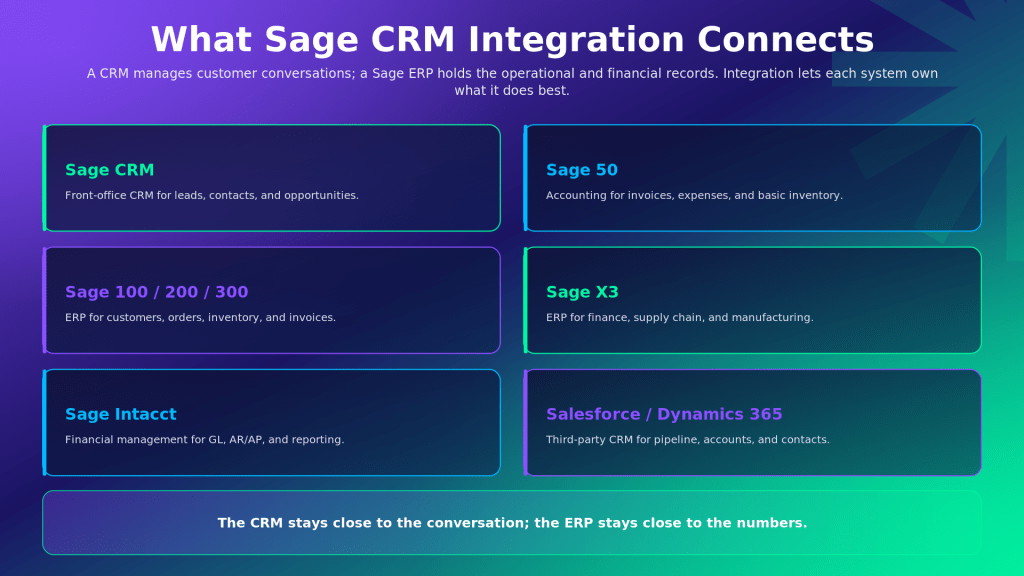
System | Role | What It Usually Owns |
Sage CRM | Front-office CRM | Leads, contacts, opportunities, cases, customer activity |
Sage 50 | Accounting software | Accounting, invoices, expenses, basic inventory records |
Sage 100 / 200 / 300 | ERP or business management system | Customers, orders, inventory, invoices, payments, reporting |
Sage X3 | ERP for larger operations | Finance, supply chain, manufacturing, multi-site operations |
Sage Intacct | Financial management system | GL, AR/AP, reporting, multi-entity finance |
Salesforce / Dynamics 365 | Third-party CRM path | Pipeline, accounts, contacts, activities, sales workflows |
This split matters because the same customer appears in both systems. The CRM may know the buyer’s name, recent calls, sales stage, and open opportunity. The ERP may know the customer’s credit status, pricing, invoice history, stock availability, and delivery status.
A good Sage CRM ERP integration lets each system do its job. The CRM stays close to the customer conversation. The ERP stays close to finance and operations. Neither has to copy the other by hand.
What Data Syncs Between Sage CRM and Your ERP
Sage data integration works best when each data type has a clear owner. Sales may update a contact’s phone number in the CRM, but finance should usually control credit terms, payment status, tax details, and invoice records in the ERP.
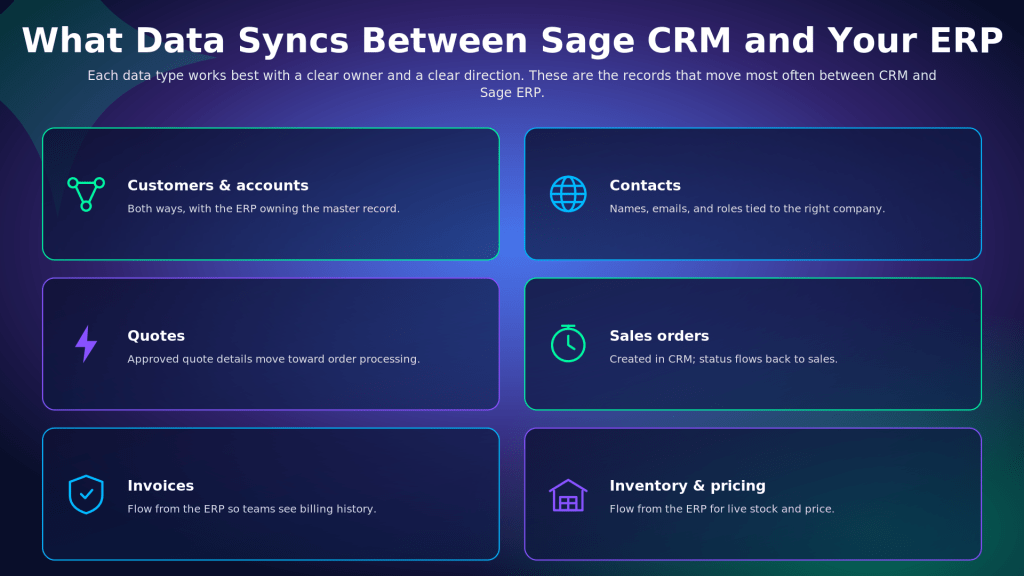
Data Object | Typical Direction | Buyer Value |
Customers / accounts | Both ways, ERP often owns the master record | Sales and finance work from the same account |
Contacts | Both ways | Names, emails, phone numbers, and roles stay tied to the right company |
Quotes | CRM to ERP | Approved quote details move toward order processing |
Sales orders | CRM to ERP, status back to CRM | Sales can see whether an order is created, processed, shipped, or delayed |
Invoices | ERP to CRM | Account teams see billing history before follow-ups |
Payments / balances | ERP to CRM | Teams get payment and credit context before customer conversations |
Inventory / pricing | ERP to CRM | Sales can quote with current product, price, and stock information |
These directions are common planning patterns, not fixed rules for every company. The final setup depends on the Sage product, the CRM, the modules in use, the connector, and the business rules.
This is where projects need discipline. If both systems can freely change the same field, duplicates and mismatches become common, and poor data quality costs organizations an average of $12.9 million a year according to Gartner. If ownership is clear, the integration is easier to trust. The cleanest approach is to decide what moves, where it moves, and which team is allowed to change it.
How Sage CRM Integration Works
Sage CRM integration is the controlled movement of data between a CRM and an ERP. A record changes in one system. The integration checks it, matches it, prepares it, and sends it to the other system. If something is missing or wrong, the record is flagged so the team can fix it.
A typical flow looks like this:
- Start the Sync: A sync runs on a schedule, after a record changes, or when a user pushes a record.
- Check for a Match: The system looks for an existing customer, account, contact, or order so it does not create duplicates.
- Send the Right Fields: CRM and ERP fields are matched so the right value lands in the right place.
- Apply Basic Rules: Required fields, formats, duplicate checks, and approval rules are validated before records move.
- Move the Record: The customer, quote, order, invoice, or other record is created or updated in the target system.
- Return the Status: The system sends back results such as order status, invoice details, errors, or confirmation.
- Fix Failed Records: Failed records appear in logs or retry queues so the team can correct them.
A buyer does not need to understand every technical part of this process. What matters is what makes the integration dependable: matching, rules, ownership, and error handling. Without them, an integration may move data but still create daily cleanup work.
How to Set Up Sage CRM Integration
Setup begins with the exact Sage product and CRM combination. A Sage CRM to Sage 100 project is not the same as a Sage CRM to Sage 300 project. A Salesforce to Sage 300 project is different again. A Sage CRM QuickBooks integration or a Sage Intacct CRM integration may need a different connector or platform route.
The safest starting point is to confirm the systems before discussing fields.
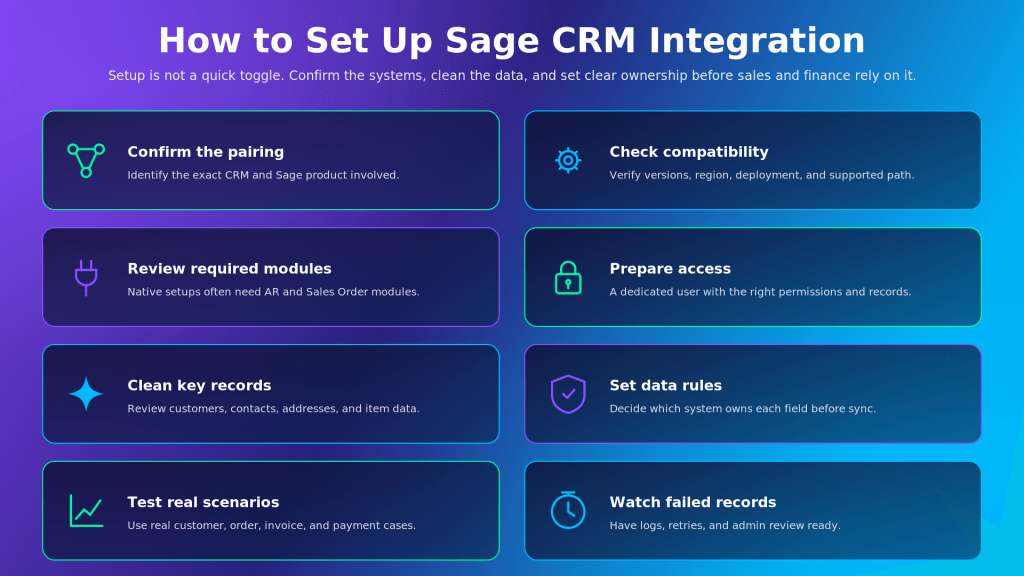
- Confirm the Pairing: Identify the CRM and Sage product involved, such as Sage CRM and Sage 100, Sage CRM and Sage 300, Salesforce and Sage 300, or Dynamics 365 and a Sage ERP.
- Check Compatibility: Confirm the Sage version, CRM version, region, deployment model, and supported integration path.
- Review Required Modules: Native Sage CRM setups often depend on ERP modules such as Accounts Receivable and Sales Order.
- Prepare Access: The integration may need a dedicated user, correct permissions, and access to the right Sage and CRM records.
- Clean Key Records: Customers, contacts, addresses, item records, and ship-to details should be reviewed before sync begins.
- Set Data Rules: Decide which system controls customer names, addresses, prices, invoices, payments, order status, and stock.
- Test Real Scenarios: Use realistic customer, quote, order, invoice, and payment examples before go-live.
- Watch Failed Records: Logs, retry options, and admin review steps should be ready before the integration becomes part of daily work.
For Sage 100, native setup runs through the Customer Relationship Management module, using CRM Server Options and CRM Company Options to link Accounts Receivable and Sales Order with Sage CRM. The Sage 100 Integration Engine service must be running, and a dedicated user logon with access to the Accounts Receivable and Sales Order modules synchronizes data between the two systems.
For Sage 300, native setup involves installing and activating Sage 300 Integration for Sage CRM on the Sage 300 server, configuring options on the Sage CRM Setup screen, and running the Workstation Setup utility on the desktops that need it. Once configured, changes to customers, ship-to addresses, and related records flow into Sage CRM automatically.
Setup is not a quick toggle. The business needs clean records, clear ownership, and a tested path before sales and finance rely on the integration.
Native Sage CRM vs Third-Party CRM
Native Sage CRM and third-party CRMs can both be the right choice. The decision depends on how your sales team works today, how deeply your business uses Sage, and whether the CRM is already central to daily work.
Option | Best When | What to Watch |
Native Sage CRM | You want a Sage-centered CRM and ERP setup | Confirm the supported Sage product, version, modules, and setup needs |
Salesforce | Your sales team already runs its pipeline in Salesforce | Plan how accounts, products, quotes, orders, and invoices map to Sage |
Dynamics 365 | You already use Microsoft sales or service tools | Confirm how Dynamics, Sage, and any Microsoft data layer share records |
Other CRM systems | Your team already uses another CRM for sales or service | Verify exact connector coverage before assuming all records can sync |
Native Sage CRM works well when the business wants to keep CRM and ERP closer to the Sage ecosystem. A third-party CRM works well when sales teams already depend on Salesforce, Dynamics 365, HubSpot, Zoho, or another platform. Replacing a working CRM just to use a native path can create more change than the business needs.
The better question is not which CRM sounds best. It is which CRM your team will actually use well, and whether that CRM can share the right data with your Sage ERP.
Methods to Integrate Sage CRM
There is no single best method for every Sage CRM integration. The right path depends on the systems, data volume, team skills, and how many workflows need to connect.
Method | Best For | Tradeoff |
Native Sage integration | Supported Sage-to-Sage pairings | Scope depends on product, version, and supported features |
Partner or prebuilt connector | A known CRM and ERP pair with standard data movement | Coverage and maintenance vary by vendor |
iPaaS or integration platform | Multi-app workflows, monitoring, retries, and business rules | Adds a platform that teams must manage |
Custom API integration | Highly specific workflows standard tools cannot handle | More developer effort and long-term maintenance |
Native integration is practical when the supported Sage pairing covers the workflow. A prebuilt connector helps when the CRM and Sage ERP pair is common and the business wants a faster start than a custom project.
An iPaaS or integration platform becomes more useful when CRM and ERP are only part of a bigger workflow, and adoption is climbing: the iPaaS market grew 23.4% to $8.5 billion in 2024, according to Gartner. Many businesses also need Sage to connect with eCommerce, support, shipping, marketplace, finance, or reporting tools. Custom API work is sometimes necessary, but it needs long-term ownership; if only one developer understands the integration, the business carries a risk.
Benefits and Common Use Cases
The main benefit of Sage CRM integration is not just less manual entry, though that matters when McKinsey estimates that up to 30% of current hours worked could be automated by 2030. It is a better handoff between teams. Sales, finance, service, distribution, and manufacturing teams all touch the customer differently. Integration helps them work from shared context instead of asking each other for updates all day.
- Sales: Sales teams quote with better information when the CRM shows ERP-backed pricing, stock, order history, and credit context. This reduces the back-and-forth that usually happens before a quote or order is approved.
- Finance: Finance teams get cleaner records when approved customer and order details move into the ERP through controlled rules. Invoice and payment updates can move back to the CRM, so account teams do not follow up without billing context.
- Service: Service teams need customer history when handling complaints, returns, delivery questions, or order issues. With integration, they see order and invoice context without switching systems or asking finance for basic details.
- Distribution: Distributors rely on stock, pricing, ship-to addresses, and order status. Sage CRM ERP integration keeps those details closer to sales conversations, so teams answer customer questions faster.
- Manufacturing: Manufacturers need sales, production, inventory, and finance to stay aligned. Integration connects customer demand in the CRM with ERP-controlled item, order, and fulfillment records.
How APPSeCONNECT and appse ai Help With Sage CRM Integration
APPSeCONNECT helps businesses connect Sage ERP with CRM and the wider operating stack through an ERP-first integration approach. That matters when Sage is not just one application in the background. For many companies, Sage is the financial and operational core. Customer data, orders, prices, stock, invoices, and payments need to stay connected to that core even when sales teams work in a CRM.
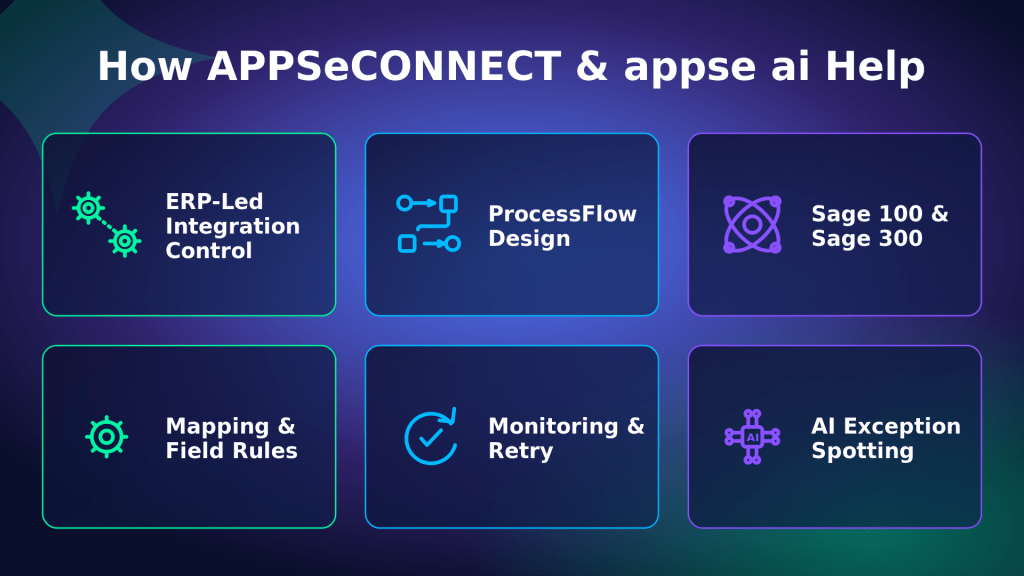
- ERP-Led Control: APPSeCONNECT helps keep Sage close to finance and operations data while the CRM continues to manage sales and customer activity.
- ProcessFlow Design: Teams can design flows for customers, contacts, quotes, orders, invoices, payments, inventory, and pricing without treating every workflow as a new custom project.
- Sage Integration Support: APPSeCONNECT offers Sage 100 and Sage 300 integration coverage that can support CRM, eCommerce, marketplace, finance, and operational workflows around Sage.
- Mapping and Rules: Teams can define how records move, which fields connect, and what checks happen before a record reaches the next system.
- Monitoring and Retry: Failed records can be reviewed, corrected, and retried instead of becoming silent sync issues.
- Multi-App Growth: The same integration layer can support more than CRM and ERP when the business also needs eCommerce, service, shipping, or reporting connections.
APPSeCONNECT also supports appse ai, its AI automation layer, which helps extend integration work into broader process automation. Once Sage CRM integration is live, the next challenge is not always moving more data. It is noticing when something needs attention. A rejected order, a missing tax field, a failed customer match, a late payment, a duplicate contact, or a stock issue should not stay hidden. appse ai helps teams spot these process signals, review exceptions, and build smarter workflows around them.
Frequently Asked Questions
Sage CRM integration depends on the exact Sage product, version, region, and setup. Sage 100 and Sage 300 have documented Sage CRM integration paths, but confirm the current supported route before planning. For Sage 50, Sage Intacct, Sage X3, QuickBooks, Salesforce, Dynamics 365, or another CRM, treat the project as a connector, iPaaS, or API decision until the exact path is verified.
Sage CRM integration can be bi-directional, but not every record should move both ways. Customer and contact data may move both ways when rules are clear. Invoices, payments, balances, inventory, and pricing usually originate in the ERP because finance and operations need tighter control over those records.
A Sage ERP can connect to Salesforce or Dynamics 365 through a supported connector, integration platform, or API design. This path makes sense when the sales team already works inside Salesforce or Dynamics 365. The key is to define how accounts, contacts, quotes, orders, invoices, products, prices, and payment details should move between systems.
Sage CRM is used for customer-facing work such as leads, contacts, opportunities, activities, and service cases. A Sage ERP or accounting system manages business records such as orders, invoices, payments, inventory, accounting, and reporting. Integration lets both systems share useful customer context without forcing one system to do the other’s job.
Common issues include unsupported version pairings, missing ERP modules, unclear data ownership, duplicate customer records, weak matching rules, permission gaps, and sync services that are not running correctly. Data quality also causes problems. Old customer records, inconsistent names, missing addresses, and duplicate contacts should be cleaned before go-live.
The timeline depends on the Sage ERP, the CRM, the number of records, data quality, modules, workflow complexity, and integration method. A small customer and invoice visibility project is very different from a full quote-to-order workflow with pricing, stock, orders, invoices, payments, and error handling.
Sage CRM can work with Microsoft email and calendar setup paths depending on the Sage CRM version and environment. That is different from Sage CRM ERP integration. Outlook or Office 365 integration usually focuses on communication, tasks, appointments, and email tracking. ERP integration focuses on customers, orders, invoices, inventory, payments, and pricing.
Conclusion
Sage CRM integration works best when the business knows which system owns which data. The CRM should guide sales and customer activity. The ERP should protect finance, inventory, orders, and payments.
Once that is clear, you can choose the right path: native Sage CRM, a third-party CRM, a connector, an integration platform, or custom API work. The strongest setup is the one that makes daily handoffs easier to trust.
To know how APPSeCONNECT can help your Sage CRM integrations with ERP and other tools in your stack, book a demo to know more.