






If you need Salesforce data in Google Sheets, the quickest route for most teams is Google’s Data connector for Salesforce add-on. It handles simple report pulls, scheduled refreshes, and light write-backs. It is not the right fit for every workflow, though. Manual CSV export, third-party connectors, full iPaaS platforms, and custom Apps Script setups each solve a different problem. The right method depends on how often the data must refresh, who owns the workflow, how much data moves, and how much control the team needs when something breaks.
This decision matters more than it looks. A spreadsheet that starts as a quick pipeline view often ends up driving forecasts, finance handoffs, or leadership reporting. Once people act on the sheet, stale or broken data becomes a real cost: Gartner estimates that poor data quality costs organizations $12.9 million a year on average. Picking the method that matches the stakes up front saves cleanup later.
Key Takeaways
|
At a Glance: 4 Methods Compared
A Salesforce Google Sheets connector can be a quick reporting shortcut or one step inside a larger business workflow. Match the method to how much the data drives daily decisions.
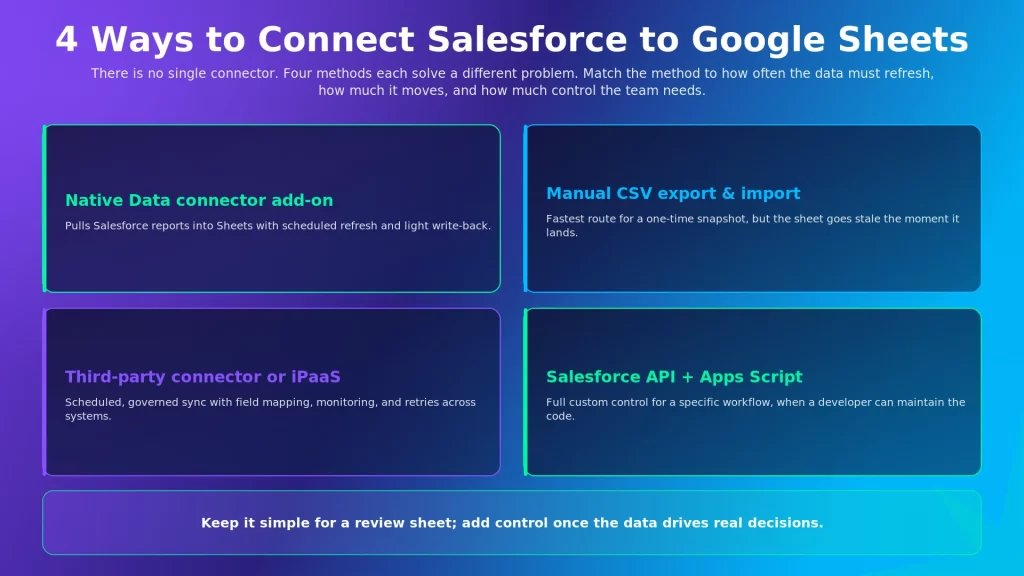
Method | Data Volume | Technical Skill | Scheduling | Directional | Best For | Watchout |
Native Data connector for Salesforce | Low to moderate | Low | 4, 8, or 24 hours | Limited write-back | Simple report pulls and basic updates | Limited refresh, row-size errors, admin approval |
Manual CSV export and import | Any (one snapshot) | Low | None | No | One-time analysis or quick sharing | Data is stale the moment it lands |
Third-party connector or iPaaS | Moderate to high | Low to medium | Flexible | Yes, with rules | Recurring, governed, multi-system sync | Needs setup and vendor review |
Salesforce API + Google Apps Script | Custom | High | Custom triggers | Custom | Custom workflows with developer support | Someone must maintain the script |
What Is the Salesforce Google Sheets Connector?
The Salesforce Google Sheets connector usually means Google’s Data connector for Salesforce add-on. It lets users pull Salesforce data into Google Sheets, refresh report data on a schedule, and send selected updates back to Salesforce when permissions allow.
It exists because so much sales work still happens in spreadsheets. Salesforce holds the official CRM record, but pipeline cleanup, forecasting, deal reviews, and team handoffs often run inside Google Sheets.
The native add-on is one option, not the only one. Salesforce can also reach Google Sheets through CSV exports, third-party connectors, iPaaS platforms, or a custom build on Salesforce APIs and Google Apps Script.
The native add-on supports a few core operations:
- Import Salesforce Reports: Bring an existing Salesforce report into a sheet for review or analysis.
- Import Custom Data: Pull selected records using a query builder or SOQL.
- Update Records: Push selected changes from the sheet back to Salesforce.
- Refresh Report Data: Refresh imported data manually or on a set schedule.
- Delete Records: Remove selected Salesforce records when the user has the right access.
The write-back options are useful but need guardrails. Once a sheet can change Salesforce, it stops being a report and becomes part of the CRM workflow.
Method 1: Native Add-On With Data Connector for Salesforce
The native Data connector for Salesforce is the easiest starting point. It runs inside Google Sheets, connects to Salesforce after authorization, and imports data without a separate integration project.
It fits when the job is simple. A sales-ops analyst pulls an opportunity report into Sheets. A manager wants a weekly pipeline view. A RevOps team reviews records in a familiar spreadsheet before acting.
When this method helps:
- Simple Reporting: The team already has Salesforce reports and only wants them in Google Sheets.
- Light Updates: Authorized users update selected Salesforce records from a sheet.
- Low Setup Effort: No developer or custom workflow required.
- Scheduled Refresh: Imported report data refreshes manually or on a basic schedule.
The add-on is listed free in the Google Workspace Marketplace. Access is not only about price, though. Salesforce permissions, Google Workspace settings, and admin approval all decide whether a user can install and use it.
How to connect Salesforce to Google Sheets with the native add-on:
- Install the add-on. In Google Sheets, open Extensions, choose Add-ons, and search for Data connector for Salesforce.
- Connect Salesforce. Sign in to the correct Salesforce account and allow the connection.
- Choose the data. Import a Salesforce report or pull custom data with the query builder or SOQL.
- Select the sheet. Place the data in a new or existing Google Sheet.
- Set the refresh. Refresh manually or schedule report data refresh at 4, 8, or 24-hour intervals.
- Review update access. Treat insert, update, and delete carefully, because they can change Salesforce records.
Pros:
- Free and quick to start for basic reporting.
- Works natively inside Google Sheets.
- Supports scheduled report refresh and limited write-back.
Cons:
- Refresh is scheduled, not real-time.
- Errors can be hard to trace and may need a Salesforce or Workspace admin.
- Report, object, field, and connected-app access can all block the connection.
- Large reports, often past 2,000 rows, can hit data-size errors.
- One refresh schedule applies per sheet, which limits multi-report workbooks.
Limitations: For a single report, the native add-on is convenient. For a workflow that touches revenue, billing, fulfillment, or leadership reporting, the refresh limits, reliability gaps, and write-back risk often make it too thin on its own.
Best for: Teams that need Salesforce reports in Sheets for review and light updates, with no real-time or multi-system requirement.
Method 2: Manual CSV Export and Import
Manual CSV export is the simplest fallback. No add-on, script, or platform is involved. A user exports Salesforce data, downloads the file, and imports it into Google Sheets.
It still has a place. Sometimes the team only needs a snapshot for a meeting, a quick review, or a one-time cleanup.
When this method helps:
- One-Time Analysis: A quick review, cleanup, or offline look at the data.
- No Add-On Access: The user cannot install the native connector.
- Simple Sharing: The team only needs a static copy of Salesforce data.
- No Technical Setup: No code or integration work required.
How it works: A user exports a Salesforce report or data file, then imports the CSV into Google Sheets. From there the team can filter, sort, add notes, build pivots, or share the sheet. It is clean for a snapshot and weak for anything ongoing.
Pros:
- Fast and requires no tooling.
- Works even when add-ons are blocked.
- Easy to share a fixed copy.
Cons:
- No refresh, so the data updates only when someone exports again.
- Every new version means another manual export and import.
- Multiple similar files create version confusion.
- No controlled way to write back to Salesforce.
- Weak tracking of who exported what, and when.
Limitations: CSV looks current even when it is already outdated. It is fine for one-off reporting and a poor foundation for weekly or daily decisions.
Best for: One-time exports, ad hoc analysis, or sharing a static snapshot.
Method 3: Third-Party Connectors and iPaaS
A third-party connector or iPaaS makes sense once Salesforce-to-Sheets work becomes repeatable, and the category is growing fast: the iPaaS market grew 23.4% to $8.5 billion in 2024, the second fastest-growing application and infrastructure middleware segment, according to Gartner. At that point the goal is not just moving data into a spreadsheet. It is keeping a process reliable.
This matters when the sheet feeds sales reviews, finance checks, order follow-ups, customer updates, or leadership reporting. If people act on that sheet, the data needs stronger control than a basic pull provides.
When this method helps:
- Recurring Reporting: Salesforce data must move into Sheets on a regular schedule.
- More Than Two Systems: The workflow also touches ERP, finance, ecommerce, or support tools.
- Controlled Updates: Data needs to move back to Salesforce with clear rules.
- Error Visibility: Failed records need logs, alerts, and retry options.
- Better Governance: Teams need to control mappings, permissions, and workflow ownership.
What this adds over the native add-on is control, not just automation:
- Field Mapping: Salesforce fields match the right columns or target fields.
- Data Cleanup: Data can be adjusted before it reaches the next system or report.
- Flexible Scheduling: Data movement is planned around business needs.
- Monitoring: Failed jobs are easier to find and fix.
- Retry Options: Corrected records run again instead of being rebuilt by hand.
- Clear Ownership: Admins and ops teams can see where a workflow failed.
APPSeCONNECT offers Salesforce workflows that need control across ERP, finance, commerce, and operational systems. It helps when Salesforce data has to move through a governed workflow before it becomes useful in a report or another system.
A full platform is not always needed. If the only need is one occasional Salesforce report in one Google Sheet, the native add-on or CSV is simpler. A connector or iPaaS earns its place when the workflow needs scheduling, mapping, monitoring, retries, or movement across more than one system.
Before choosing a tool, confirm the exact workflow: the Salesforce objects, the Sheets use case, refresh needs, write-back rules, and error handling. Do not buy a platform only because a spreadsheet needs data.
Pros:
- Scheduled, repeatable sync with monitoring and retries.
- Controlled bi-directional updates with field mapping.
- Connects Salesforce to more than one system in one governed layer.
Cons:
- Requires setup and a vendor review.
- More than a casual reporting team needs for a single report.
Best for: Recurring, governed, multi-system Salesforce workflows where reliability matters more than convenience.
Method 4: Salesforce API + Google Apps Script
Salesforce API with Google Apps Script is the custom route. It works well when a team needs a very specific workflow and has developers to support it.
The idea is straightforward. Google Apps Script runs in Google’s environment, connects to Salesforce through an API, pulls the right data, and writes it into a sheet. The hard part is keeping it stable over time.
When this method helps:
- Custom Logic: The workflow needs special filters, rules, or formatting.
- Narrow Data Pulls: Only a specific Salesforce object or query is needed.
- Internal Tools: Small internal reporting workflows.
- Developer Ownership: Someone can maintain the script after launch.
What the build needs:
- Salesforce Login Setup: A safe way for the script to authenticate to Salesforce.
- Data Request Logic: The script must ask Salesforce for the right data.
- Sheet Update Logic: Data must land in the right sheet, rows, and columns.
- Schedule Setup: Time-driven triggers run the script on a timer.
- Error Logs: Failed runs should leave a message someone can read.
- Access Review: Tokens, scopes, and permissions need careful handling.
Pros:
- Full control over logic, filtering, and formatting.
- No subscription fee for the workflow itself.
- Fits narrow, developer-owned internal tools.
Cons:
- Maintenance cost shows up later: expired logins, changed fields, broken queries, failed triggers, unclear errors.
- If the original developer leaves, the script can be hard to fix.
Limitations: Apps Script can look cheap because there is no license fee, but the real cost is upkeep. Use it when custom control matters. Avoid it when the team needs a low-maintenance workflow that business users can manage.
Best for: Developer-supported teams with a specific workflow and the capacity to maintain code.
Reliability, Limits, and the 2025 Security Change
When the Salesforce connector for Google Sheets stops working, the cause is usually access, permissions, report changes, refresh settings, or Salesforce connected-app rules.
The 2025 Salesforce connected-app change is central here. Starting in early September 2025, Salesforce restricts the use of uninstalled connected apps. Most users can no longer self-authorize an app that an admin has not installed, so a user may be unable to connect a tool until an admin installs or approves it. Users who have already authorized an app can generally keep using it, but new users get blocked. For sales-ops and RevOps teams, this can turn a simple spreadsheet task into an admin request.
Symptom | Likely Cause | What to Check |
Data stops appearing | Login, report access, or permission changed | Reconnect Salesforce and check report access |
Refresh does not run | Schedule or sheet ownership issue | Check refresh settings and owner access |
User cannot connect | Connected app needs admin approval | Ask the Salesforce admin to install or approve the app |
Fields are missing | Field or object access changed | Check Salesforce field and object permissions |
Updates fail | User lacks record permissions | Review insert, update, and delete access |
Script breaks | API, token, or field change | Check logs and authentication setup |
How To Choose the Right Method for Your Team
Choose by workflow risk. A one-time spreadsheet does not need the same setup as a weekly leadership report or a finance handoff.
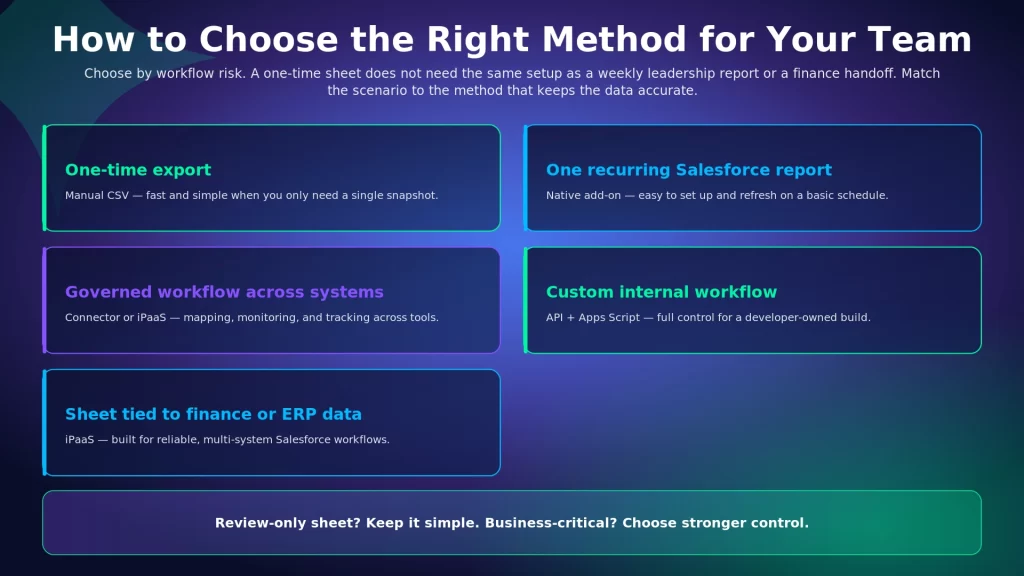
Scenario | Better Method | Why |
One-time export | Manual CSV | Fast and simple |
One recurring Salesforce report | Native add-on | Easy to set up and refresh |
Governed workflow across systems | Third-party connector or iPaaS | Better control and tracking |
Custom internal workflow | API + Apps Script | More control for developers |
Spreadsheet tied to finance or ERP data | iPaaS | Built for multi-system workflows |
A simple rule works well. If the sheet is only for review, keep the setup simple. If the sheet drives reporting, billing, fulfillment, or team decisions, choose a method with stronger control.
Where APPSeCONNECT and appse ai Help
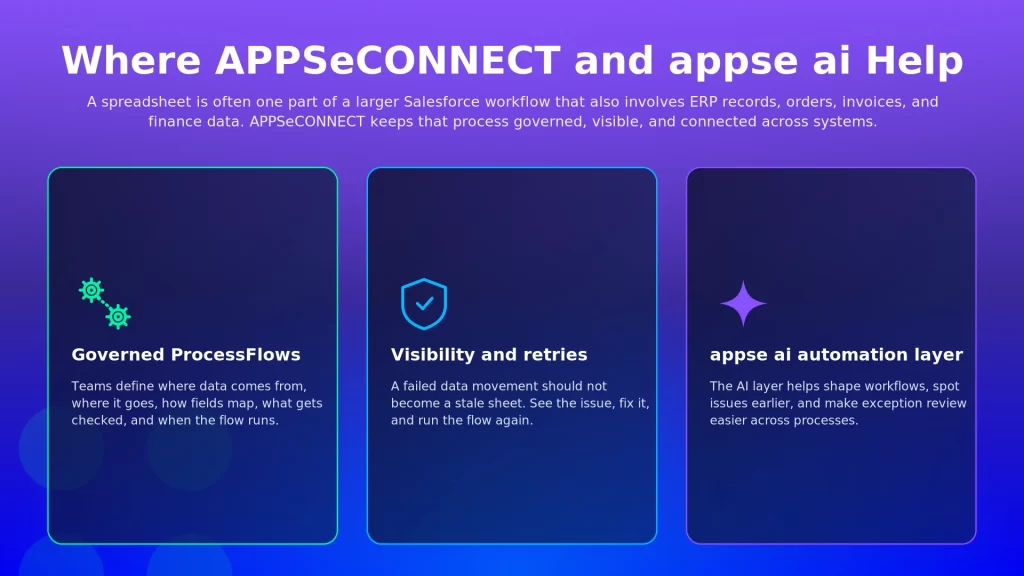
APPSeCONNECT helps when the spreadsheet is one part of a larger Salesforce workflow. A team may review data in Google Sheets while the real process also involves ERP records, orders, invoices, customer details, or finance data.
In that kind of workflow, APPSeCONNECT moves Salesforce data through governed ProcessFlows. Teams define where the data comes from, where it goes, how fields are mapped, what gets checked, when the flow runs, and what happens when something fails. That matters because a failed data movement should not quietly turn into a stale spreadsheet. Teams need a way to see the issue, fix it, and run the flow again.
APPSeCONNECT also comes with appse ai, its AI automation layer, which helps extend integration workflows into broader automation. It can help teams shape workflows, spot issues earlier, and make exception review easier across connected processes.
For a single occasional report pull, the native add-on or CSV is still the simpler choice. APPSeCONNECT becomes more useful when Salesforce data needs to stay connected across ERP, finance, commerce, operations, and reporting workflows.
Common Mistakes To Avoid
A Salesforce Google Sheets integration gets risky when a team treats it like a small spreadsheet task even after it becomes part of a business process, and the risk is not hypothetical: one 2024 review found that 94% of business spreadsheets used in decision-making contain errors.
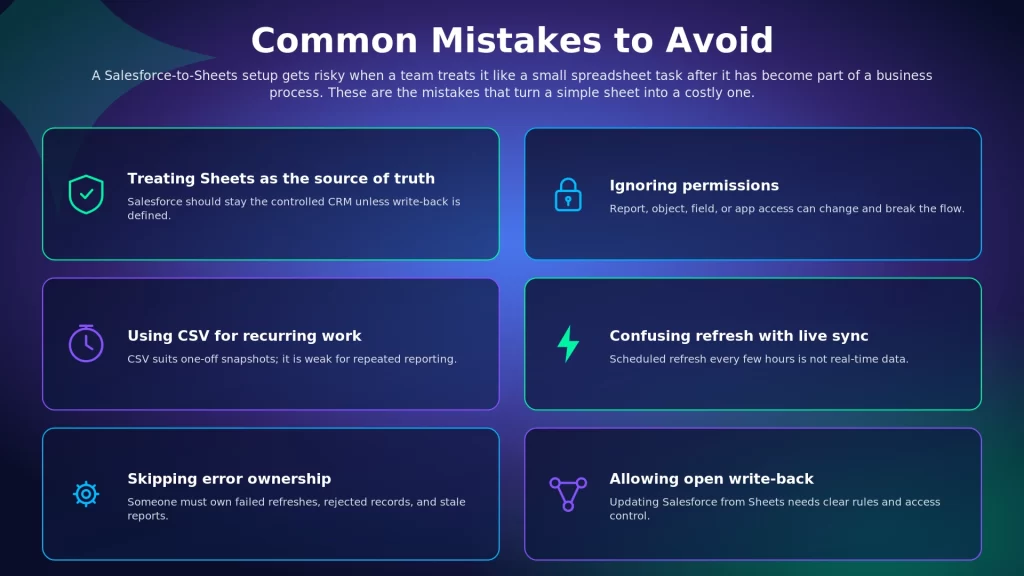
- Making Sheets the Source of Truth: Sheets is useful for review, but Salesforce should stay the controlled CRM system unless there is a clear write-back process.
- Ignoring Permissions: If report, object, field, or app access changes, the workflow can break.
- Using CSV for Recurring Work: CSV is fine for snapshots and weak for repeated reporting.
- Confusing Refresh With Live Sync: Scheduled refresh is not real-time data.
- Skipping Error Ownership: Someone must own failed refreshes, rejected records, and stale reports.
- Allowing Open Write-Back: Updating Salesforce from Sheets needs rules and access control.
The spreadsheet may look simple. The process behind it needs proper ownership.
Frequently Asked Questions
The Google Data connector for Salesforce is listed as free of charge in the Google Workspace Marketplace. Access can still depend on Salesforce permissions, Google Workspace settings, and admin approval of the connected app.
Install the Data connector for Salesforce add-on, sign in to Salesforce, and import a report or selected data into a sheet. You can also use CSV export, a third-party connector, an iPaaS platform, or a custom Apps Script setup, depending on how often the data must refresh and how much control you need.
Salesforce can integrate with Google Sheets through the native Google add-on, CSV exports, third-party connectors, iPaaS tools, or custom API work. The best method depends on refresh needs, permissions, workflow size, and how much control the team needs.
Yes. A Salesforce report can be imported into Google Sheets through the native Data connector for Salesforce add-on. After import, the report data can be refreshed manually or on a schedule.
The native add-on can insert or update selected Salesforce records from Google Sheets when the user has the right permissions. Because this changes CRM data, teams should control who can use write-back features.
The native add-on refreshes imported report data manually or on a schedule, with intervals of 4, 8, or 24 hours. Teams that need faster or event-based updates should review a third-party connector, an iPaaS platform, or an API-based option.
The connector can stop populating data when login access, report access, field permissions, connected-app approval, or refresh settings change. Reconnect Salesforce, check report and field access, and ask an admin to install or approve the connected app if authorization is blocked.
You may need admin help if Salesforce or Google Workspace blocks add-on installation, OAuth access, or connected-app use. Under the 2025 Salesforce connected-app change, many users need an admin to install or approve the app before they can connect.
The native add-on is not built for true real-time data. It refreshes on a schedule, which is different from live sync. For data that must update more often or trigger actions across systems, review a third-party connector, an iPaaS platform, or a custom API setup.
Conclusion
The best Salesforce Google Sheets connector method comes down to how much the sheet matters to the business. Use the native add-on for simple report pulls, CSV for one-time snapshots, an iPaaS for governed multi-system workflows, and Apps Script when custom control is worth the maintenance. Once a sheet starts guiding sales, finance, or operations, reliability matters more than convenience.
For teams that need Salesforce data connected across ERP, finance, commerce, and reporting workflows, APPSeCONNECT can bring structure and visibility to the process. A good next step is to map your actual workflow: the Salesforce objects, refresh needs, write-back rules, and the systems involved, then match it to the simplest method that keeps the data accurate and easy to manage.
To know how APPSeCONNECT can help you with Salesforce integration and automation across your ERP and tool stack, book a demo to know more.