





When your store runs on Square and your finance team runs on Microsoft Dynamics 365 Business Central, the two systems need to talk to each other. If they do not, someone ends up copying orders by hand, stock counts fall out of step, and the numbers in your books never quite match the numbers at the register. A Square Business Central integration removes that gap. It moves products, orders, inventory, and payments between the two systems automatically, so your team works from one accurate set of records. This guide walks through what the integration does, the ways you can set it up, how to put it in place, and how APPSeCONNECT fits in.
Want to see it working with your own data? Book a free demo.
Why connect Square POS with Business Central?
Square handles the front of your business. It rings up sales, takes card payments, and tracks what sells. Business Central handles the back. It manages accounting, inventory, purchasing, and reporting. Run on their own, each system only sees half the picture. Connected, they share one flow of data, so a sale at the counter updates your stock and your ledger without anyone lifting a finger.
What standalone systems cost you
Keeping Square and Business Central separate usually means rekeying the same order twice, waiting on stock updates, and reconciling totals by hand at the end of the month. Small mismatches turn into oversold items, delayed reporting, and time lost to cleanup. The more you sell, the more those gaps add up.
Why real time syncing matters
When a sale closes in Square, Business Central should know straight away. Real time syncing means your finance team sees current figures, your buyers reorder at the right moment, and your inventory reflects what is actually on the shelf. Instead of working from yesterday data, everyone works from now.
What a Square and Business Central integration does
A complete integration connects four kinds of data and keeps them moving in the right direction. Here is what that looks like in practice.
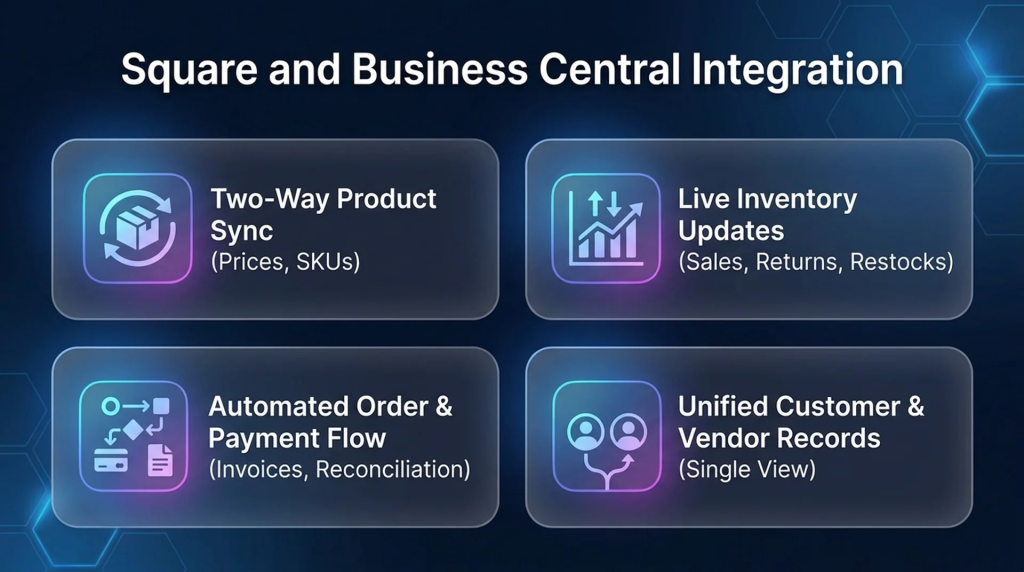
Two way product syncing
Create or edit a product in one system and the other updates to match. Prices, descriptions, variants, and SKUs stay consistent, so your catalog reads the same whether someone is looking at the register or the back office.
Live inventory counts
Every sale, return, and restock adjusts stock on both sides at once. That keeps your available quantity accurate across locations and helps you avoid selling something you no longer have.
Order and payment syncing
Sales orders and payments flow from Square into Business Central without manual entry. Invoices generate on their own, ledger entries update, and card payments taken at the terminal, including Apple Pay and Google Pay, land in your records. Square payouts and processing fees can be matched against the right accounts so reconciliation stays clean.
Customer and vendor records in one place
Many retailers track customers differently in each tool. A good integration merges them into one record, with consistent contact details, purchase history, and loyalty information. With a single view of each customer, your marketing and your service teams both work from the same facts.
Which setup method is right for you?
There is more than one way to connect Square and Business Central, and the right choice depends on what you need to move. The first decision is whether you only need to take payments or whether you need your products, stock, orders, and customers to stay in sync.
Square offers a native payments path. Using the Square Terminal API, a Square Payments extension lets Business Central accept in person card payments directly, and you can often install it from Microsoft AppSource. This works well if collecting card payments inside Business Central is your only goal.
It is not, however, a full data integration. A payments extension moves card transactions, but it does not keep your catalog, inventory, orders, and customers aligned across both systems. For that you need an integration platform that handles two way syncing of your core data. The table below lays out the difference.
What you need | Native Square Payments extension | Integration platform |
Take in person card payments in Business Central | Yes | Yes |
Sync products, inventory, orders, and customers | No | Yes |
Reconcile payouts, fees, and settlements | Limited | Yes |
Support multiple locations and channels | Limited | Yes |
Custom field mapping and business rules | No | Yes |
If payments are all you need, the native extension may be enough. If your inventory and finance run through Business Central, an integration platform is the setup that holds up as you grow.
What data moves between Square and Business Central
It helps to see exactly which record in Square lands where in Business Central before you start. This reference shows the typical mapping.
Square record | Business Central record | Notes |
Catalog item | Item card | Matched on SKU; variants map to item variants |
Order | Sales order or invoice | Line items, discounts, and taxes carry across |
Inventory count | Item ledger entry | Adjusts stock by location |
Customer | Customer card | Deduplicated on email or phone |
Payment or tender | Payment entry | Posts to the mapped account |
Payout | Bank or general ledger entry | Net of Square fees and settlement |
Location | Location code | Supports multiple stores and currencies |
Mapping is flexible, so you can add rules or transformations wherever your Square and Business Central structures differ.
How to set up the integration step by step
Once you know which method fits, setting up the integration follows four clear steps.
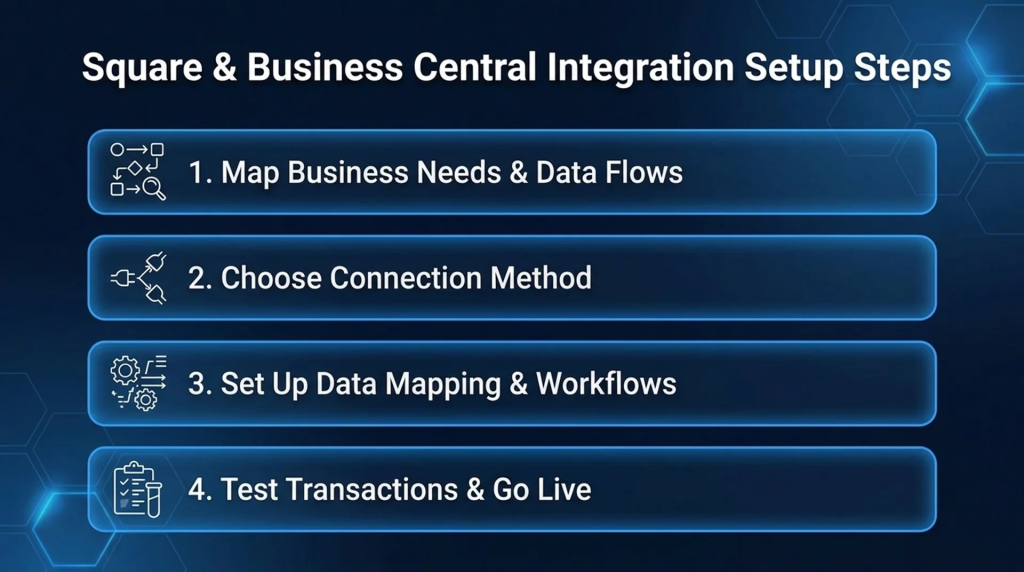
Step 1: Map out what your business needs
List the data you want to move, the direction each flow should run, the number of locations involved, and any reporting or tax requirements. Clear requirements make every later decision easier.
Step 2: Choose your connection method
Decide whether you need payments only or full data syncing, using the comparison above. If you need products, inventory, orders, and customers kept in step, pick an integration platform with a ready Square connector and a Business Central connector. Look at connector maturity, mapping flexibility, security, and pricing before you commit.
Step 3: Set up data mapping and workflows
Match each Square record to its Business Central counterpart, set the direction and timing of each sync, and define rules for taxes, discounts, and duplicates. A visual mapping tool lets your team adjust this without writing code.
Step 4: Test before you go live
Run test transactions first. Confirm that orders, stock, customers, and payments post correctly, then check the trickier cases such as refunds, partial payments, and stock across more than one location. Fix anything that looks off, then switch it on.
Fixing common syncing problems
Most early issues trace back to a handful of causes. Duplicate customers usually mean the matching field is wrong, so align on email or phone. Missing orders often point to a connection that needs reauthorizing. Stock that drifts out of line tends to be a location that was never mapped to the right code in Business Central. Tax mismatches come from rates that are not syncing, which the next section covers.
Keeping sales tax and reporting accurate
An integration should make tax season easier, not harder. Accurate sales tax depends on charging the right rate for each jurisdiction, recording every transaction, and keeping digital records that hold up to review. When your point of sale and your ERP share the same data, tax figures stay consistent and your records stay audit ready.
A few practices keep this reliable:
- Calculate sales tax on every transaction so nothing slips through.
- Log data as it happens to keep a continuous record trail.
- Reconcile regularly so your filings match your sales.
With the two systems in sync, most of this work runs quietly in the background.
Why retailers choose APPSeCONNECT for this integration
APPSeCONNECT gives you a ready way to connect Square and Business Central without building from scratch, along with the flexibility and security that growing retailers need.
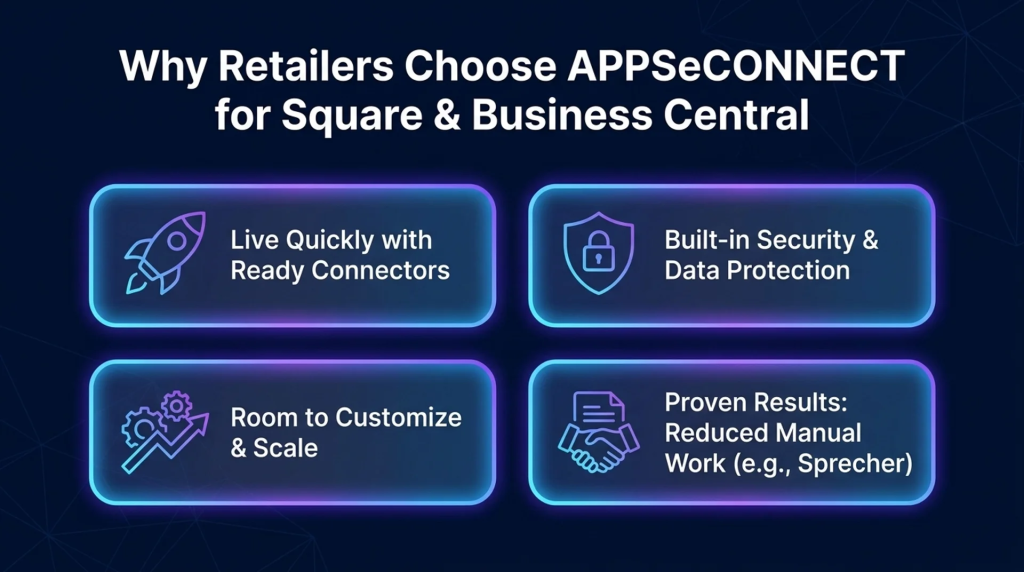
A connector that gets you live quickly
Start from a ready connector instead of coding one. Most teams move from setup to live data in days rather than months.
Security and data protection built in
Your data is encrypted in transit and at rest, access is controlled by role, and the platform is tested regularly, so your Square and Business Central records stay protected.
Room to customize and scale
Adjust mappings and business logic through a visual designer, and add new products or rules in minutes. As your order volume and locations grow, the platform grows with you.
Customer story: Sprecher Brewing
Sprecher Brewing used APPSeCONNECT to connect its retail and back office data and cut down on manual work across the two systems. Ask our team for the full story and the results they saw.
How APPSeCONNECT compares with other tools
Several tools can connect Square and Business Central, and each suits a different job. Zapier and Flozic are built for lightweight, task based automation rather than deep ERP syncing. Skyvia focuses on loading and replicating data. Alumio is a developer oriented platform. APPSeCONNECT pairs a ready Square and Business Central connector with retail specific logic and hands on support, which fits well when you want a managed integration rather than a build it yourself project.
Ready to connect Square and Business Central?
If your store runs on Square and your books run on Business Central, an integration turns two separate systems into one smooth flow of data. Book a demo and we will show you how it works with your own products, orders, and payments.
Frequently Asked Questions
You end up entering data twice, waiting on stock updates, and reconciling totals by hand. That leads to inventory mismatches, overselling, and extra overhead.
It keeps inventory, sales, and finance figures current at the moment of sale, so you avoid overselling and reporting lag.
Use the native extension if you only take card payments in Business Central. Choose an integration platform when you also need products, inventory, orders, and customers synced.
Yes. Mappings, transformations, and business rules are fully configurable through a visual designer, so you can match your own setup.
Through encryption in transit and at rest, role based access, and regular security testing.