





Few things slow a sales or operations team down faster than a Salesforce integration that quietly stops working. Records go missing, data turns stale, and nobody is sure where the problem started. The good news is that most failures fall into a handful of familiar patterns, and once you can name the pattern, the fix gets a lot simpler. This guide walks through Salesforce integration troubleshooting the way an experienced team actually does it: spot the symptoms, find the real cause, repair it carefully, and put checks in place so the same issue does not return.
How to Tell Your Salesforce Integration Is Broken
A broken integration does not always send up a flare. Sometimes it fails loudly with red error banners, and sometimes it just goes quiet while problems pile up downstream. Watch for these signs:
- New records from your other systems stop appearing in Salesforce, or appear hours late.
- The same record shows up more than once, or fields come through blank or scrambled.
- Sync jobs report failures, or finish successfully while clearly skipping data.
- Error notifications start arriving more often than usual.
- Reports stop reconciling with the source system, and your team begins working around the integration with manual exports.
If any of these feel familiar, treat it as a signal to pause and investigate rather than wait for it to clear on its own.
What Causes Salesforce Integration Problems?
Symptoms tell you something is wrong. Causes tell you where to look. Across most integration setups, the trouble traces back to one of the following.
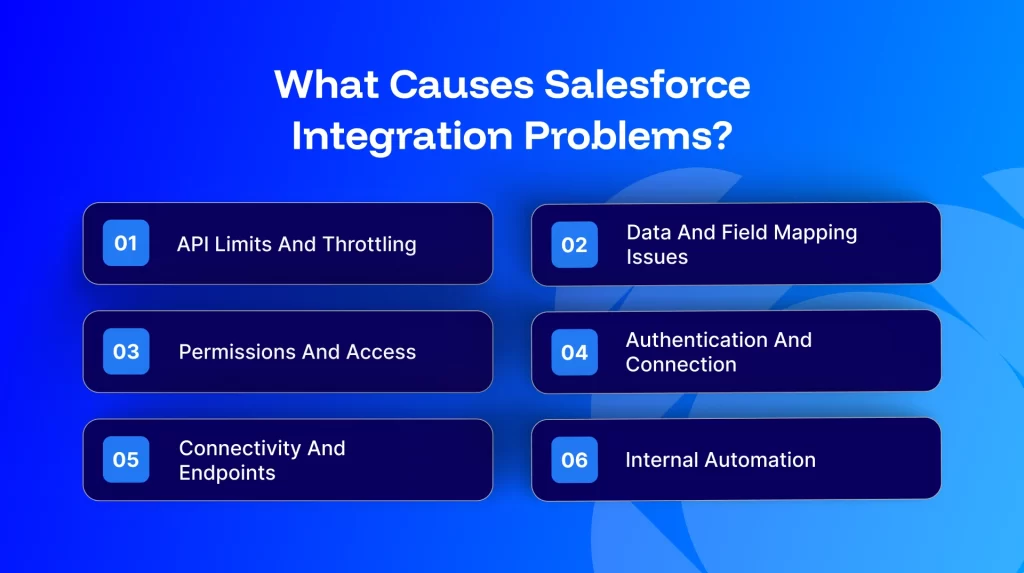
API Limits and Throttling
Every Salesforce edition sets a cap on how many API requests an integration can make in a 24 hour window. A busy or poorly batched integration can burn through that allowance and get cut off until the window resets, which often looks like a sync that fails at the same time each day. You can review current usage under Setup, then Company Information. Moving high volume jobs to the Bulk API or spacing calls out with batch processing usually brings usage back under control.
Data and Field Mapping Issues
A large share of failures come from the data itself. A field type mismatch, such as text arriving in a number field, a broken field mapping, or a picklist value that exists in one system but not the other will all stall a record. Validation rules in Salesforce can reject incoming data when required fields are missing or formatting does not match. Duplicate records and clashing Salesforce IDs are a common version of the same problem and are easy to miss.
Permissions and Access
If the integration user does not have read, write, and modify access to the right objects and fields, records simply will not move. The cleanest setup grants those rights through a dedicated profile or permission set that follows least privilege, rather than handing out broad Modify All access that becomes hard to audit later.
Authentication and Connection
Connections age. An expired OAuth token, a misconfigured Connected App, or a revoked Named Credential can sever the link overnight and take the whole integration offline at once. This is worth checking early, because a single broken connection often explains a flood of failures.
Connectivity and Endpoints
Sometimes the issue is the path to Salesforce rather than Salesforce itself. An incorrect API endpoint, a firewall rule, or a missing IP allowlist entry can block the integration from connecting. If you run an on premise system, confirm that outbound traffic to Salesforce is permitted.
Internal Automation
Your own org can interfere with a sync. A Salesforce Flow, a trigger, or a third party managed package may change or block records mid process, especially after an update or a new release. When errors start right after a change inside Salesforce, this is the first place to look.
The table below maps common symptoms to their likely cause and the fastest place to confirm it.
Symptom | Likely cause | Where to check |
Sync fails at the same time daily | API limits used up | Setup, then Company Information |
Specific records rejected | Validation rule or field type mismatch | Error message on the failed record |
Whole integration offline | Expired OAuth or Connected App | Setup, then Connected Apps |
Records skipped silently | Picklist mismatch or duplicates | Field mapping and a dedupe report |
New errors after a change | Flow or managed package update | Setup, then Flows, plus release notes |
How to Fix a Broken Salesforce Integration Step by Step
Once you have a sense of the cause, work through the repair in order. Rushing to a fix before you understand the scope tends to create more cleanup later.
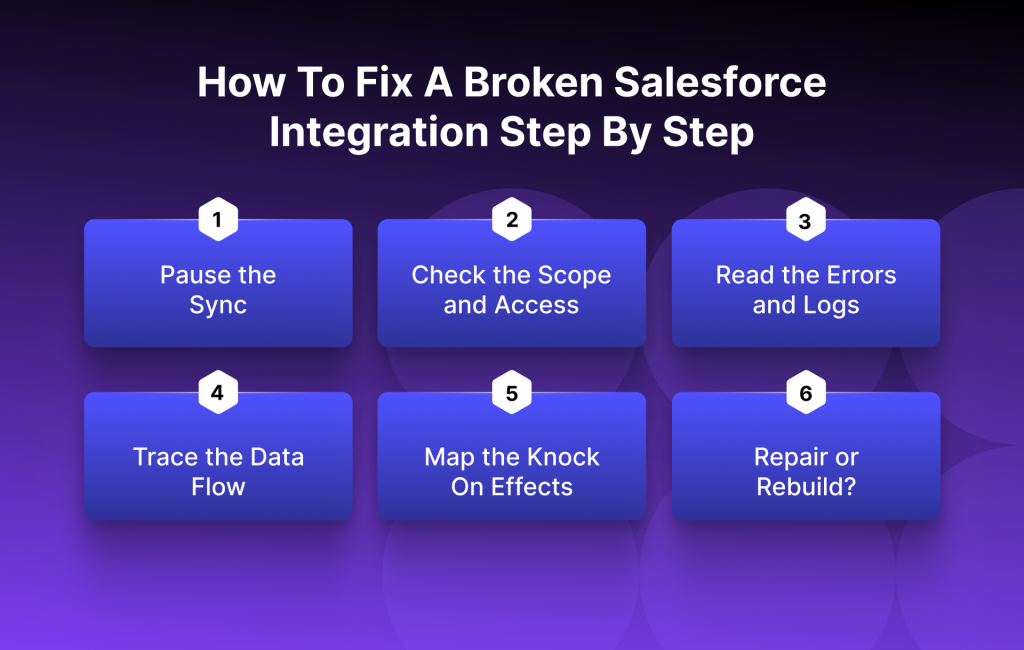
Step 1: Pause the Sync
Before changing anything, stop the automated syncs. It feels counterintuitive when the business depends on the data flow, but a faulty integration that keeps running will write bad data into more records and turn a small problem into a large one. Pausing gives you a stable picture to work from.
Step 2: Check the Scope and Access
With the sync paused, map exactly what the integration touches: which objects, which fields, which direction data moves, and which user it runs as. While you are here, confirm the Connected App and OAuth authorization are still valid, since a lapsed connection is one of the quietest reasons a sync goes dark.
Step 3: Read the Errors and Logs
This is the heart of the work, moving from something is broken to a specific named error. Start with your integration platform logs, then go to the source. In Salesforce, turn on Debug Logs for the integration user to capture what happens on each call, and enable Apex Exception Email Notifications so Apex and Flow errors reach your inbox as they happen. The error message on a failed record usually points straight at the broken field, rule, or permission.
Step 4: Trace the Data Flow
Pick one failed record and follow it end to end. Check for data truncation, invalid references, and missing lookup IDs. Just as often the break sits in the mapping layer: a stale field mapping, a field type mismatch, a picklist value the two systems disagree on, or a duplicate that Salesforce rejects on a unique ID. Work in a sandbox so you can test fixes without risk before applying them to live data.
Step 5: Map the Knock On Effects
While you diagnose, think about what else depends on this integration. If order data is not reaching Salesforce, consider how that affects fulfillment, the service team view, and your reporting. Then look upstream: the data has to come from somewhere, and the real fault may start before it ever reaches the integration.
Step 6: Repair or Rebuild?
With the cause and the wider impact clear, make an honest call. If the problem is isolated and the setup is otherwise sound, patch it. If you keep firefighting the same errors and the build feels fragile, rebuilding on a steadier platform is usually the cheaper choice over time.
How to Check Your Salesforce API Limits
Because API limits cause so many quiet failures, it helps to know exactly where to look. Open Setup, search for Company Information, and review the API requests counter for the last 24 hours. If the number is close to your edition cap, that is very likely your culprit. To bring it down, batch related records together with the Bulk API, schedule heavy jobs outside peak hours, and remove any redundant calls that pull the same data more than once.
Why Fixing the Error Is Only Half the Job
A quick patch can restore the flow, yet without monitoring the same loop tends to start over. A few habits keep you ahead of the next failure:
- Set alerts for error thresholds and for API usage approaching its limit, so you hear about trouble before users do.
- Use automatic retries for transient errors so a brief hiccup does not become a manual cleanup.
- Run a short health check on a regular schedule rather than waiting for something to break.
- Keep a simple change log of field mappings, validation rules, and automation, so the next person can trace what changed.
How an iPaaS Platform Keeps Integrations Steadier
If your current setup is fragile or hard to maintain, an integration platform as a service, often called iPaaS, can take much of the strain off your team. Instead of custom code that one person understands, an iPaaS layer offers managed connectors, low code tools for mapping and debugging, built in alerting, and retry logic for failed records. The result is fewer of the failure modes covered above, and a faster path back to a working state when something does slip. APPSeCONNECT is built around this model, with the kind of replay and monitoring features that make day to day Salesforce integration troubleshooting far less stressful.
Get a Hand With Your Integration
If you would rather not work through this alone, you can talk to a Salesforce integration specialist or start a free trial of APPSeCONNECT and see its alerting, low code debugging, and connectors for yourself.
Frequently Asked Questions
Most failures come from one of five areas: API limits, data problems such as field mapping or validation rules, missing permissions, broken authentication through OAuth or a Connected App, or a connectivity issue like a blocked endpoint. Start by reading the error message on a failed record, since it usually names the cause.
Open Setup, go to Company Information, and review the API request counter for the last 24 hours. If you are near the cap, move high volume work to the Bulk API and spread calls out with batch processing.
Pause the integration, turn on Debug Logs and Apex Exception Email Notifications, isolate one failed record, work out whether the cause is a permission, mapping, or validation issue, fix it in a sandbox, then reprocess the record.
Read, write, and modify rights to every object and field in scope, granted through a dedicated profile or permission set that follows least privilege rather than broad Modify All access.
Patch it when the cause is isolated and the build is sound. If you keep repairing the same errors, rebuilding on an iPaaS platform usually costs less over time.