





A purchase requisition is the formal request that starts every procurement cycle in SAP. It tells the purchasing team what is needed, how much is needed, and when it must arrive. Done well, it keeps stock levels healthy, controls spend, and reduces stockouts on the production floor.
This guide walks through how to create a purchase requisition in SAP ECC, SAP S/4HANA, and SAP Fiori, the fields that matter, and how the document moves into a purchase order once approved.
What is Purchase Requisition (PR) in SAP?
A purchase requisition (PR) is an internal document in SAP MM that requests goods or services from the purchasing department. It is not an order. It is a signal that a department or a planning run needs something procured.
Two ways a PR is created in SAP:
Manually by a user who knows the requirement (a buyer, planner, or department owner).
Automatically by MRP runs, maintenance orders, production orders, sales orders, or network activities.
A PR holds the material number, quantity, delivery date, plant, and account assignment. Once it clears the release strategy, a buyer converts it into a purchase order in ME21N, ME57, or ME58.
Related: Important Considerations for SAP ECC to S/4HANA Migration
How to Create Purchase Requisition in SAP ECC?
Follow these steps to successfully create PR in SAP ECC.
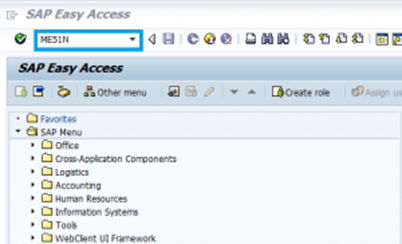
Step 1: Enter Transaction Code – ME51N
Enter transaction code ME51N in the SD Master Data Screen.
Or, you can also navigate to the following path Logistics -> Materials Management -> Purchasing -> Purchase Requisition -> Create
Step 2: Fill in Purchase Details and Save
Fill in the following required fields
- Purchase Requisition document type as NB Standard.
- Source determination can be ON or OFF.
- Header note.
- Material, quantity, plant, fixed vendor, and purchasing organization.
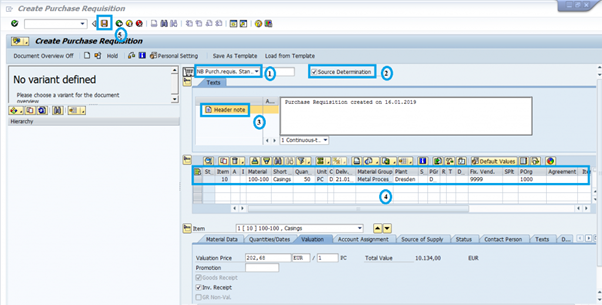
Then click on Save, and the Purchase Requisition will be created.

Next, after successful approval, you need to convert the PR into a Purchase Order.
Converting Purchase Requisition into Purchase Order
Here’s the step-by-step process of raising a Purchase Order from the respective PR.
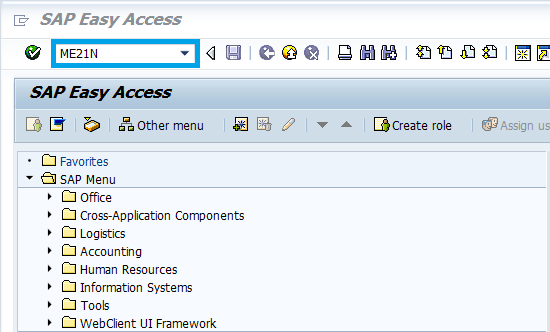
Step 1: Enter Transaction Code – ME21N
Enter transaction code ME21N in SD Master Data Screen to open the Create Purchase Order screen.
Step 2: Raising a Purchase Order
From here on, there are two methods to create the PO.
Method 1:
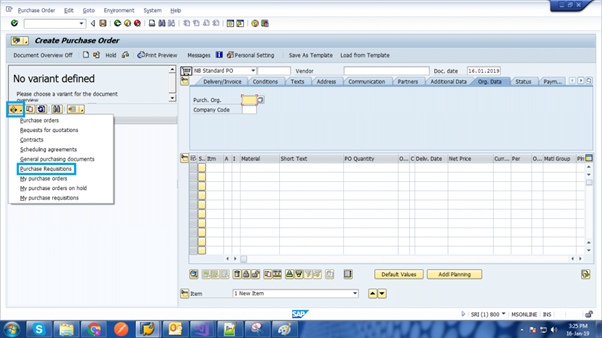
- Click on Purchase Requisitions from the dropdown of the Selection variant.
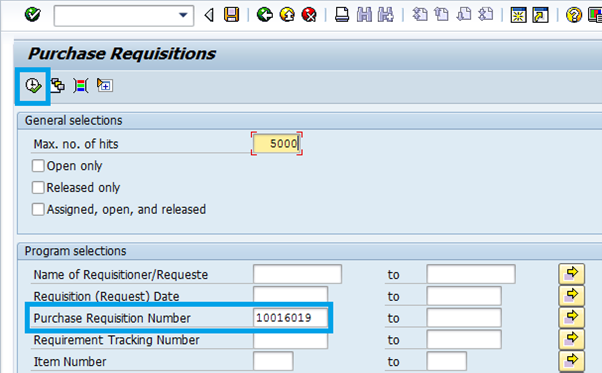
- Enter the PR number against which you want to create the Purchase Order. Then click on Execute.
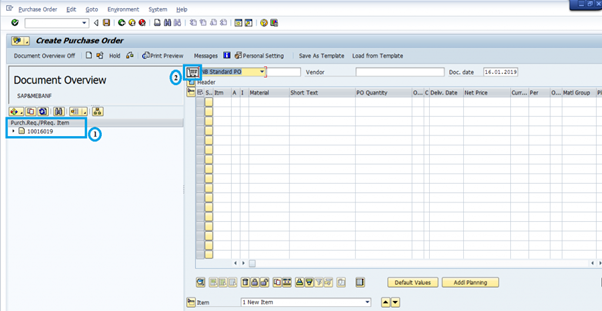
- Next, Now drag the standard reference Purchase requisition (1) to the cart next to NB Standard PO (2).
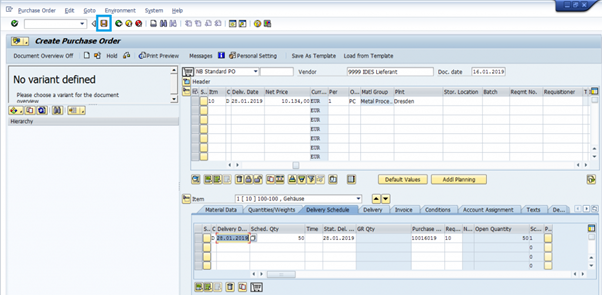
- The purchase details will appear in the table. Verify the details, and finally click on Save.
Method 2:
Manually fill in the following details:
- Purchase requisition document type as NB Standard.
- Respective value for the Vendor.
- Purchase Organization, Purchase group, and Company Code under Organization Data tab.
- Purchase requisition number.
Then click on Enter.
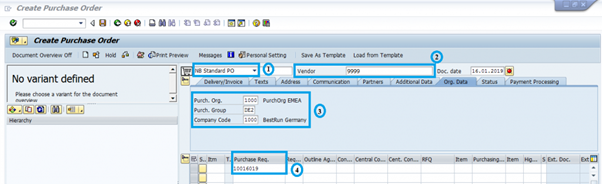
With either of these methods, the PO will be created successfully.

How to Create Purchase Requisition in SAP S/4HANA?
For S/4HANA users, the process to create PR in SAP varies depending on the UI they are using.
When using SAP Easy Access through WebGUI, follow the same steps explained above to generate PR and convert it to Purchase Order.
However, if you’re using SAP Fiori, the brand-new user interface for SAP, you need to follow the steps below to create a Purchase Requisition.
Step 1: Log in to SAP Fiori. In the Home Screen, click on the Materials Management Tab on the top menu.
Step 2: Click on Create Purchase Requisition on the submenu.

Step 3: Now in the PR creation form, click on Create Own Item. This will open the General data entry form.

Step 4: Enter respective values for Material, Valuation Price, Quantity requested, and Delivery date.
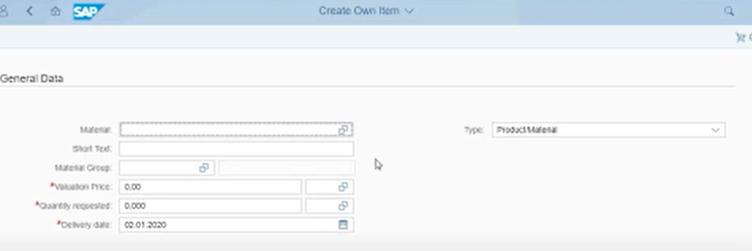
Step 5: After filling the necessary details, click on Add to Cart.
Step 6: Go to the Cart and select the item. Provide details for Purchasing Group, Purchasing Organization, and Plant. Once all the details are provided, select Save.
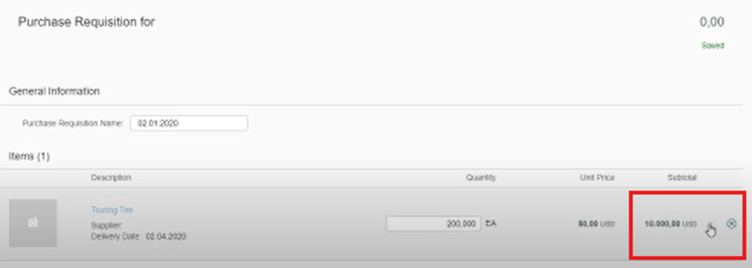
Step 7: Finally on the Cart, click on Order. You will see the Purchase request is created.
Step 8: Now to convert this PR into a Purchase Order, go to the Purchase Requisition screen. Select the Purchase requisition entry you created just now. Then click on the Create Purchase Order button on the top right.
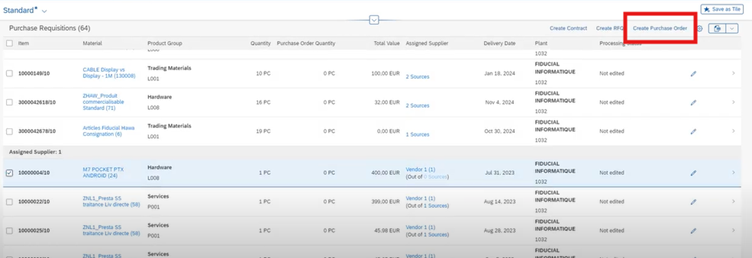
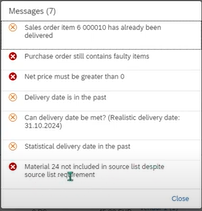
Step 9: Some messages will be displayed based on the data validation. After you fix them, the Purchase order can be created.
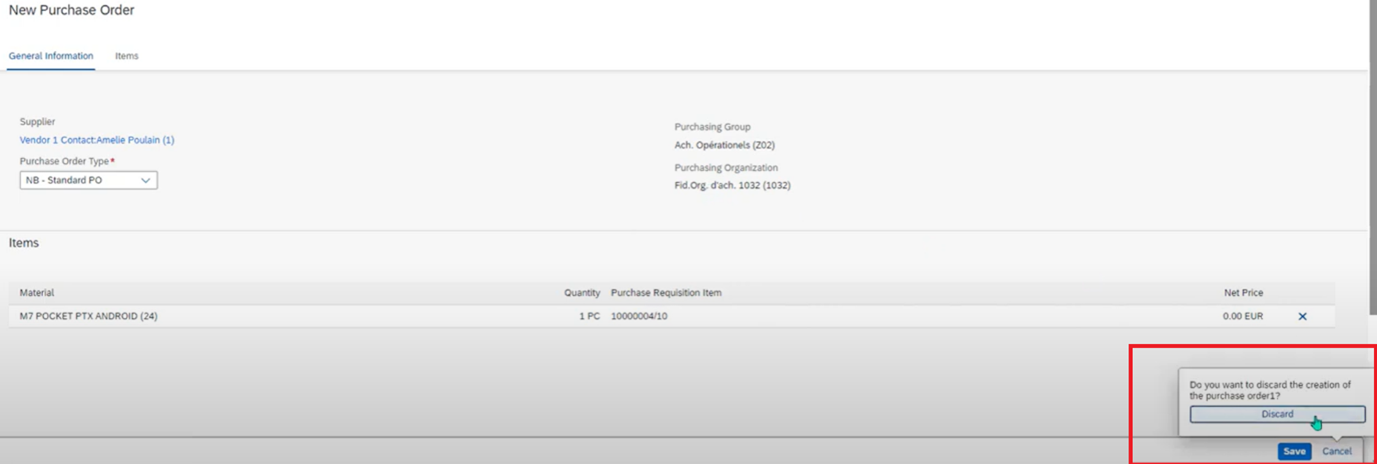
Step 10: Finally, once you go to the next screen, click on Save to finally create the PO.
Related: SAP S/4HANA Connectors – Integrate with CRMs, eCommerce, and more
Common Challenges and Solutions in Creating Purchase Requisitions in SAP
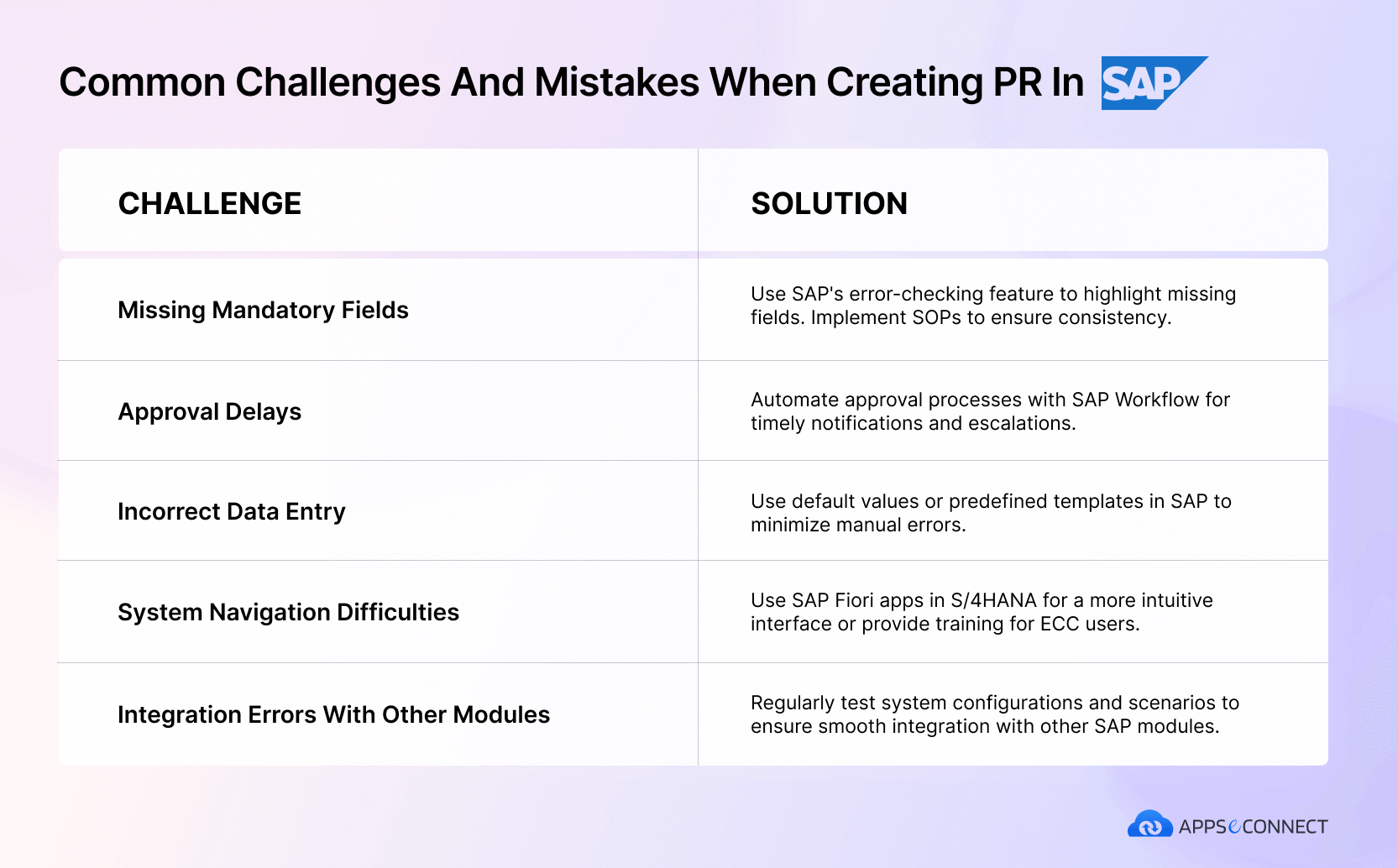
Creating purchase requisitions in SAP is an essential process for procurement. But users often encounter several challenges, especially those who don’t have extensive hands-on experience with the ERP. Below are some common challenges faced by users, along with practical solutions to overcome them.
Related: 6 SAP Implementation Challenges and Solutions
Who Creates a Purchase Requisition (PR)?
PRs are usually initiated and created by:
Department Users: Employees or team members in departments (e.g., Maintenance, Production, Marketing) who need specific goods or services typically initiate the PR.
Automated Systems: In cases of automated processes, such as Material Requirements Planning (MRP), the system generates PRs based on predefined criteria like low stock levels or forecasted demand.
Project or Cost Managers: Responsible for raising PRs linked to specific cost centers, projects, or budgets.
A PR does not live alone. It pulls and pushes data across SAP MM, FI, CO, PP, and PM.
MM (Materials Management): Material master, info records, and source lists feed the PR.
FI (Financial Accounting): Posting and budget checks at the account assignment level.
CO (Controlling): Cost center, internal order, and profit center mapping.
PP (Production Planning): MRP creates PRs automatically when stock is short.
PM (Plant Maintenance): Work orders generate PRs for spare parts.
SD (Sales and Distribution): Third party orders create PRs that go straight to the supplier.
Connecting these modules to a CRM, eCommerce platform, or 3PL system shortens lead time and removes manual rekeying. An iPaaS solution like APPSeCONNECT keeps SAP, the storefront, and the financial system in sync without custom code, so a PR created downstream lands in SAP with full master data already mapped.
Conclusion
A purchase requisition keeps procurement honest. It records what was needed, who asked, when, and how the cost should be assigned. Whether the team works in SAP ECC, S/4HANA, or Fiori, the steps follow the same pattern: enter the requirement, route for approval, and let the buyer turn it into a purchase order.
For organizations running SAP alongside a webstore, marketplace, or CRM, an integration platform keeps the requisition data clean across systems. Book a free demo of APPSeCONNECT to see how a connected SAP procurement workflow looks in practice.